AyaInterview resources
A clear path to your first interview
Follow the steps below to install, connect and use AyaInterview. The illustrated user guide covers the web workspace and Windows companion in detail.
Guide 01
Answer a pasted or screen question
- In Windows app version 0.1.23 or later, start a signed-in live session. Choose Paste question, paste up to 12,000 characters of question text or code, then choose Answer pasted question. No reading aloud is required.
- For a question you cannot copy, choose Screenshot question. Select the window, review its single snapshot, then choose Analyze: solve. Debug, explain and tests are also available for coding tasks. Only the selected image is sent to Anthropic when you choose an analysis action.
- Snapshots can be submitted for one minute. Refresh an expired preview. AyaInterview does not store these images as uploaded files; the AI provider applies its own processing and retention policy.
- Before starting the session, choose Coding or Mixed assistance and Code language → Auto-detect language. Explicit saved language choices remain available. The language can change from one question to the next.
- Pasted answers use the main answer board. Screenshot analysis appears in a separate panel, with Copy suggested code and unexecuted test suggestions. Screen analyses are not automatically added to transcripts or mirrored to the phone. Review and test suggestions yourself.
Guide 02
Start your first session
- Sign in with your email code. A verified account receives a one-time 10-minute trial and 20 AI credits.
- Open Download, install the Windows companion and follow its account connection link.
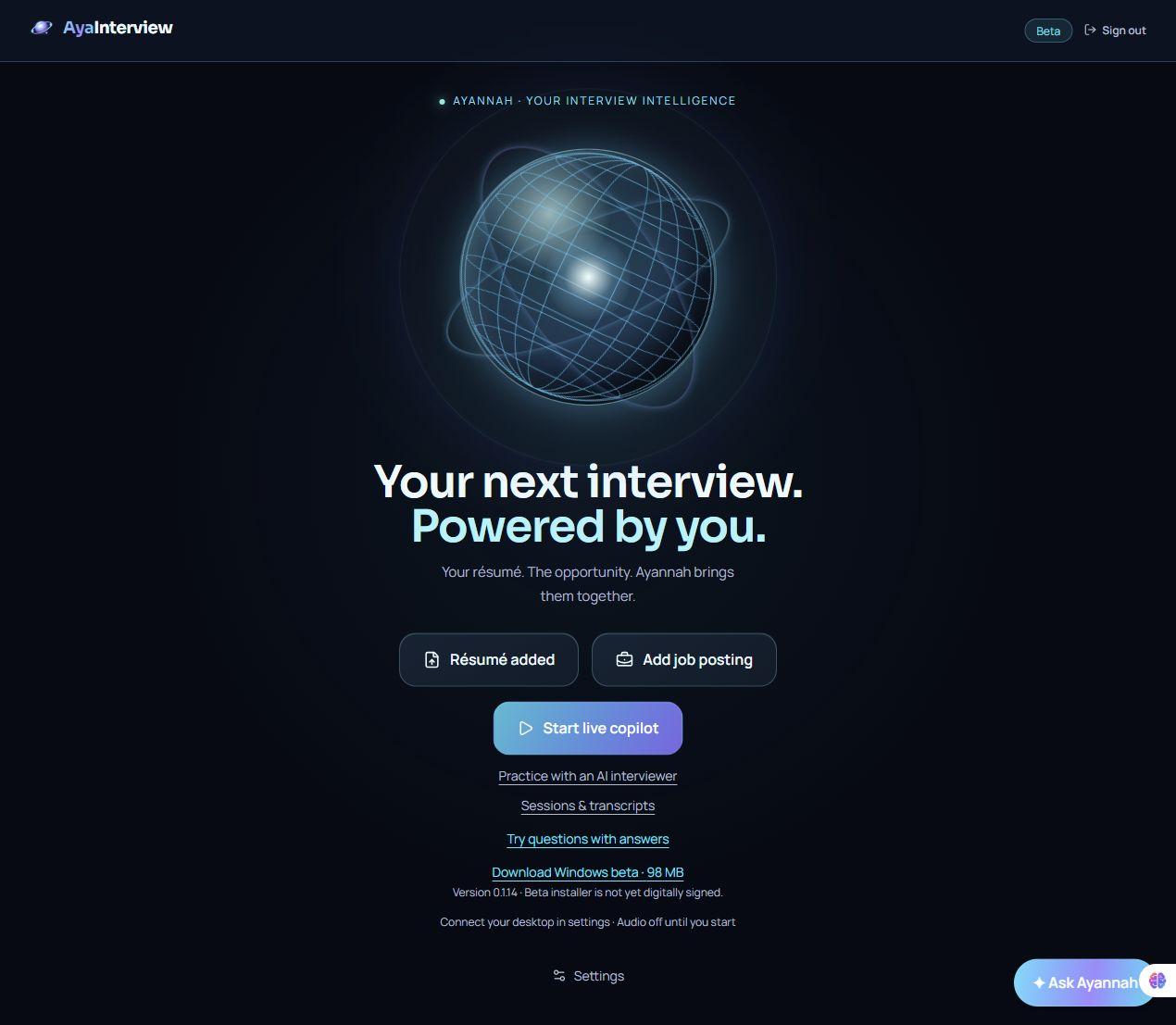
- In the web workspace, optionally choose Upload résumé and Add job posting. Review extracted experience before saving.
- Open the companion and choose live assistance or practice. Live mode checks both audio sources; practice checks your microphone. Start only when the intended source is working.
- Test live assistance with a consenting practice partner: have them ask a question, wait for the answer, and read it aloud to test voice-follow scrolling. End the session when finished.
Guide 03
Upload a résumé and add a job posting
- Choose Upload résumé in the workspace. Upload a Word (.docx) or PDF file up to 5 MB, or paste résumé text.
- Choose Read my resume, review the extracted facts and save your reviewed experience.
- Choose Add job posting and paste the opportunity details. Use material you have permission to share.
- Preparation can use reviewed experience and the target role. General live answers are drafts; check that they truthfully describe you.
Guide 04
Choose the right audio source
- For a computer call such as Zoom, the interviewer source captures computer/system audio. Your microphone is a separate source used to follow your reading.
- Run the desktop audio check before the call. A moving microphone meter alone does not prove that interviewer audio is captured.
- When everyone shares one microphone or a phone is on speaker, select the shared-microphone option. It can hear both speakers and needs careful testing.
- Headphones reduce speaker echo. If using speakers, check that your own read-out is not repeatedly interpreted as a new interviewer question.
- If interviewer audio fails, review the source, OS permissions and displayed error. Do not start a real session until a practice question is transcribed.
Guide 05
Read automatic answers and follow-ups
- In live mode, detected interviewer questions request answers automatically. Read the displayed answer as a draft and adapt it to your real experience.
- Your microphone helps align your speech with the answer and move the reading position. Keep the microphone active and speak close enough to be transcribed.
- Use complete interview answers for conversational questions, coding assistance for technical problems, or the mixed mode for interviews containing both.
- Short additions should not erase a useful current answer unless a new question is accepted. Clarify or repeat an unclear question; check the transcript when recognition is wrong.
- If guidance stops, inspect audio, connection, allowances and the status message before restarting. End a stale session before creating another.
Guide 06
Practice and try sample questions
- Practice with an AI interviewer opens the Windows companion in practice mode; the AI asks questions and you answer.
- Try questions with answers in the web workspace is a separate text test that gives you an example question and a draft answer to read.
- Use live copilot with a consenting practice partner when you want their spoken questions to trigger answers automatically.
- Practice feedback and coding suggestions are advisory. Generated code is not executed or tested by AyaInterview.
Guide 07
Ask Ayannah for preparation help
- Choose the floating Ask Ayannah button on a workspace page.
- Ask for preparation, question examples or an explanation of your interview workflow. Provide only information you want processed.
- Ayannah is a preparation assistant. Live audio capture and automatic call answers are controlled by the desktop companion.
Guide 08
Use your phone as a second screen
- Sign in to the same account on your phone. Open Phone companion from the workspace Settings panel.
- Link the desktop to your account before enabling phone answers. Start a live desktop session with phone sharing enabled.
- The phone displays the active session question and answer state. Allow for network delay.
- End the desktop session to clear its live phone state. If the phone is blank, check the account, desktop link and active session.
Guide 09
Find transcripts and review sessions
- Choose Sessions & transcripts in the main workspace.
- Choose Review session to inspect an individual interview. Use the transcript download where available.
- Review feedback as guidance, not a hiring prediction or proof of accuracy.
- Delete a session from its review controls when you no longer want its saved interview data. Export account data from account Settings.
Guide 10
Manage minutes credits and subscriptions
- Open workspace Settings, then Account and billing.
- Starter is $19/month with 240 minutes and 120 AI credits; Pro is $39/month with 600 minutes and 240 AI credits. Fast uses one credit and Balanced uses three.
- Plans provide all available features and models within allowances. They are not unlimited usage.
- Use Manage billing to update a payment method, view invoices or cancel renewal at the end of the current billing period.
- A cancellation does not automatically refund prior payments. Contact support for billing or refund requests. Payment disputes can place account usage on hold.
Guide 11
Privacy consent and account controls
- Obtain required permission to capture or transcribe participants and follow the interview or assessment rules.
- Audio is sent for live transcription. Saved session text, preparation material and generated answers are processed by the relevant service providers.
- Optional Windows capture exclusion varies by OS and meeting software; it is not a guarantee of invisibility.
- Use Settings for data export, desktop/account controls and account deletion. Deletion checks open checkout and active subscriptions first.
- Read the Privacy and Terms pages. For a privacy request, contact Work Mates support using your account email.
Guide 12
Get help when something goes wrong
- Before reporting an issue, note the Windows app version, call application, audio device/source and the exact visible error.
- Do not send API keys, sign-in codes, payment details or unnecessary interview content to support.
- For download errors, sign in with a confirmed email, wait if rate-limited and retry. Verify the version and checksum shown on Download.
- For transcription issues, check What was heard and each audio meter. For blank answers with visible transcript, check status, network and allowances.
- Contact workmatesllc@workmatesgo.com. Include the time and the steps needed to reproduce the issue.